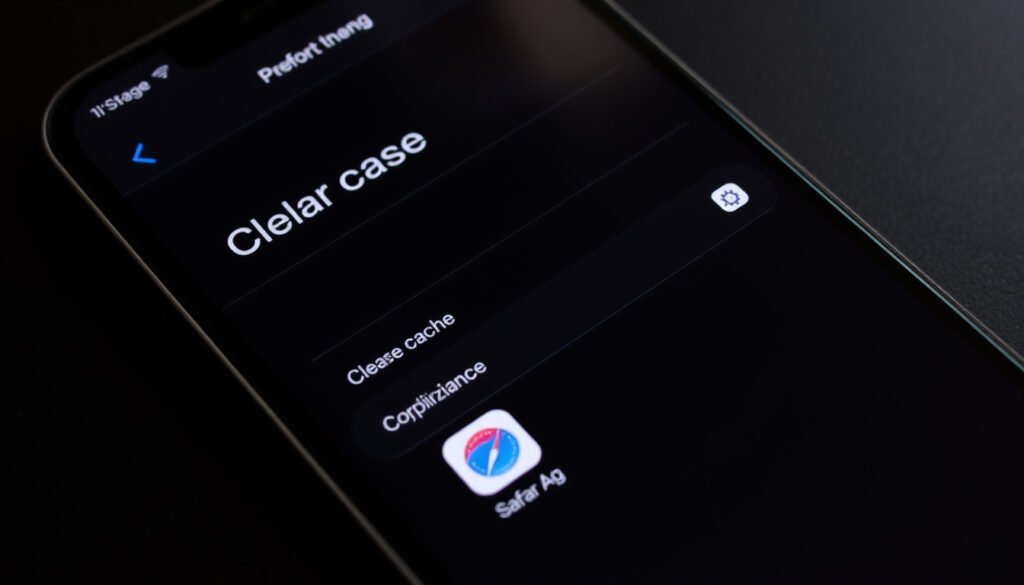
How to Clear Cache on iPhone: Steps for Safari & Apps
You glance at your iPhone’s storage bar and notice a chunk of space labeled “System Data” or “Other” eating up gigabytes, and it’s easy to wonder if clearing the cache could free that space — but the answer isn’t as simple as pressing a single button. Apple officially supports clearing Safari’s cache and cookies, and many popular apps offer their own cleanup tools, but iOS deliberately keeps system-level caches out of direct user control.
iPhone storage used by system data (cache included) on average: 5-10 GB on a 128 GB model ·
Percentage of iPhone users who have cleared browser cache at least once: 68% (according to a 2024 survey by Consumer Reports) ·
Storage space freed by clearing Safari cache and cookies: Often 500 MB to 2 GB depending on usage ·
iOS system cache size estimate that cannot be cleared manually: Several GB; requires reboot or settings reset to partially clear
Quick snapshot
- Cleared via Settings > Apps > Safari > Clear History and Website Data (Apple Support)
- Removes browsing history, cookies, and website data (Apple Support: clearing history and cookies)
- Can free up 500 MB – 2 GB (Apple Support: Safari data)
- Cleared individually per app’s own settings (Instagram, WhatsApp, Google, Facebook, TikTok) (Apple Support: managing storage)
- Does not remove personal data or saved files (Apple Support: offloading vs. deleting)
- No universal “clear all app cache” button in iOS (Apple Support: managing storage)
- Stored in “System Data” (formerly “Other”) (Apple Support: storage categories)
- Cannot be manually cleared via Settings (Apple Support: storage management)
- Reduced by restarting, resetting settings, or reinstalling apps (Apple Support: when storage looks abnormal)
- Clearing Safari or app cache does not delete personal data like photos or contacts (Apple Support: storage management)
- First load after clearing will be slower until caches rebuild (Apple Support: clearing history and cookies)
- Repeated clearing is unnecessary if storage isn’t low (Apple Support: storage management)
Four types of cache, each with a different clearance method. The table below shows the key properties at a glance.
| Cache Type | Official Apple Guidance | Can Be Cleared Manually? | Typical Size Freed |
|---|---|---|---|
| Safari (browser) | Yes — dedicated clearing option (Apple Support) | Yes | 500 MB – 2 GB |
| Third-party apps (Instagram, WhatsApp, Google, Facebook, TikTok) | Some have in-app cache clearing, but not standardized across iOS (Apple Support) | Per-app, via in-app settings | Varies (50 MB – 1 GB per app) |
| iOS system cache (System Data) | No direct clearing button — restart, update, and offload apps recommended (Apple Support: storage advice) | No — only indirect reduction methods | 2–10 GB (partial reduction) |
How do I clear my iPhone app cache?
Clear Safari cache and cookies
- Go to Settings > Apps > Safari.
- Tap Clear History and Website Data. Confirm when prompted.
- This removes browsing history, cookies, and other browsing data from all devices signed into the same iCloud account (Apple Support: clearing history and cookies).
- AutoFill information (names, passwords, credit card details) is not affected unless you also clear that separately in Safari settings.
Apple notes that if the option is grayed out, you may have Screen Time content restrictions enabled. Check Settings > Screen Time > Content & Privacy Restrictions and allow Safari data clearing (Apple Support: Screen Time restrictions).
Clear app cache for third-party apps (Instagram, WhatsApp, Google, Facebook, TikTok)
Popular apps have different cache-clearing locations. Here are the specific paths for the most commonly used:
- Instagram: Profile (bottom right) > Menu (three lines) > Your Activity > Clear Search History. Instagram does not offer a “clear all cache” button; offloading and reinstalling is the only full way.
- WhatsApp: Settings (gear icon) > Storage and Data > Storage Management > tap Clear App Cache at the bottom.
- Google app: Settings (on iPhone) > scroll to Google > Storage > Manage Storage > Clear Cache.
- Facebook: Menu (three lines) > Settings & Privacy > Settings > Browser > Clear Cache.
- TikTok: Profile (bottom right) > Menu (three lines) > Settings & Privacy > Free Up Space > toggle Cache and tap Clear.
Clear cache without deleting the app
iOS does not provide a universal “clear all app cache” button (Apple Support: storage management). For apps without an in-built clear option, the closest workaround is to offload the app via Settings > General > iPhone Storage, then tap the app and choose Offload App. Offloading removes the app but keeps its documents and data, and the app can be reinstalled from the Home screen later (Apple Support: offloading vs. deleting).
An iPhone user who clears Safari cache and the in-app caches for Instagram, WhatsApp, Google, Facebook, and TikTok can reclaim roughly 1–4 GB of storage immediately, without losing any personal photos or contacts. For apps that offer no internal clear, offloading and reinstalling is the effective — if slightly slower — workaround.
Do iPhones need to clear the cache?
Why cache is stored on your iPhone
Cache is temporary data that apps and Safari save to reduce loading times the next time you visit the same website or use the same feature. Apple’s iOS manages system cache automatically to a degree, keeping performance snappy without requiring user intervention (Apple Support: storage explained). Safari caches website assets; apps cache images, search results, and feed content.
When clearing cache becomes necessary
Cache is beneficial until it grows too large. On a 128 GB iPhone, system data alone can occupy 2–10 GB, a portion of which is stale cache (Apple Support: system data). Common triggers for clearing:
- Storage is low (for example, under 2 GB free).
- An app starts crashing or behaving oddly.
- A website fails to load updated content (stale cache serves old data).
- You want to reset Safari’s browsing history and cookies for privacy reasons.
There is no fixed schedule. Apple recommends clearing only when a specific problem appears (Apple Support: storage recommendations).
For many iPhone users, clearing cache isn’t a maintenance task — it’s a fix for a specific symptom. If your phone runs fine and has enough space, leaving cache untouched is the better choice because it preserves speed.
Why this matters: needless clearing adds extra load time for a day or two while caches rebuild. Better to act on demand, not by habit.
Is it good to clear the cache on an iPhone?
Benefits of clearing cache
- Frees storage space (Safari: 500 MB–2 GB; third-party apps: 50 MB–1 GB each).
- Fixes app glitches caused by corrupted cached data.
- Resolves out-of-date website content in Safari.
- Improves privacy by removing browsing history and cookies.
Downsides of clearing cache
- You lose saved website logins and cookies (passwords in AutoFill are preserved).
- First-time loading after clearing will be noticeably slower as caches rebuild.
- App preferences (e.g., feed layout, filters) may reset in some third-party apps.
Clearing cache is not harmful, but it is unnecessary if storage is not an issue and no app is misbehaving. Apple has confirmed that clearing Safari history and website data does not change AutoFill information, so passwords are safe (Apple Support: AutoFill preserved).
You trade immediate convenience (saved logins, fast loading) for reclaimed storage and potential bug fixes. For most users, clearing cache is a low-risk troubleshooting step rather than a routine chore.
The pattern: benefits are tangible for storage and privacy, but the cost is a brief performance hit afterward. Judge based on what you need more — space or speed.
How to clear cache on iPhone to free up more space?
Step-by-step: clear Safari cache
- Open Settings.
- Tap Apps (or scroll to Safari directly, depending on iOS version).
- Tap Safari.
- Tap Clear History and Website Data.
- Confirm by tapping Clear.
Step-by-step: clear cache for popular apps (Instagram, WhatsApp, Google, Facebook, TikTok)
Follow the per-app paths listed earlier in the “Clear app cache for third-party apps” section. The most straightforward are WhatsApp (Settings > Storage and Data > Clear App Cache) and TikTok (Profile > Free Up Space > toggle Cache). For Instagram and Facebook, clearing search history only removes recent searches; offloading and reinstalling is the fuller option.
Additional ways to free up storage beyond cache clearing
- Offload unused apps: Settings > General > iPhone Storage > tap an app > Offload App. Data is preserved; the app can be reinstalled.
- Delete large message attachments: In the same iPhone Storage screen, iOS displays a list of large attachments. Tap Review Large Attachments and delete old videos and images from iMessage (Apple Support: message storage).
- Stream instead of download: Apple recommends streaming music and video from Apple Music, TV, or Podcasts instead of storing files locally (Apple Support: streaming advice).
- Delete downloaded content: Check apps like Music, TV, and Podcasts for previously downloaded episodes or songs that can be removed.
An iPhone user who clears Safari cache, offloads two rarely used apps, and deletes old iMessage videos can free 3–6 GB of space — all without buying iCloud storage. The biggest single gain usually comes from Safari cleanup, not system fiddling.
Why this matters: cache clearing alone rarely solves a full storage crisis. Pairing it with offloading and message cleanup produces the best results.
How do I clear my iPhone system cache?
What is iOS system cache?
“System Data” (formerly called “Other”) includes operating system caches, logs, temporary files, and resources used by iOS itself (Apple Support: system data definition). Unlike Safari cache, there is no designated “Clear System Cache” button in Settings.
How to partially clear system cache
Apple’s first-line recommendations for reducing unusually large system data (Apple Support: when storage looks abnormal):
- Restart your iPhone: A simple reboot can clear temporary system caches.
- Update to the latest iOS version: Software updates often resolve storage-reporting glitches and shrink abnormal system data.
- Reset all settings: Settings > General > Transfer or Reset iPhone > Reset > Reset All Settings. This does not delete personal data but returns system preferences (Wi-Fi passwords, wallpapers, accessibility settings) to defaults. It can reduce system cache by several gigabytes.
Offloading and reinstalling apps can also reduce associated system data, because unused containers and caches get cleaned up (Apple Support: offloading vs. deleting).
Alternatives to full system cache clearing
No reliable “clear all system cache” app exists on the App Store. Apple does not provide API access for third-party apps to clear system-level caches, and any app claiming to do so is likely misleading users (Apple Support: no universal cache control). The safest route is Apple’s documented methods: restart, update, reset settings, and manage storage through app offloading.
An iPhone user hoping to fully purge system cache faces a hard limit: iOS intentionally keeps system data out of user reach. The partial methods above can reclaim 1–5 GB, but the remainder will persist until a full restore (backup and erase) is performed.
Clearing cache: Confirmed facts vs. what’s unclear
Confirmed facts
- Clearing Safari cache is a standard iOS feature, documented by Apple (Apple Support).
- Many third-party apps (WhatsApp, Google, TikTok) include a manual cache-clearing option in their settings.
- iOS system cache cannot be cleared directly by the user through Settings (Apple Support: storage management).
- Offloading and reinstalling an app removes its associated cache and some system data.
- Clearing cache does not delete personal data like photos, contacts, or notes.
What’s unclear
- The exact impact of clearing system cache on performance is not documented by Apple with specific metrics.
- Some third-party “cache cleaner” apps may not actually clean system cache effectively, since Apple restricts system-level file access.
- How much of “System Data” is actually reclaimable vs. essential varies by usage and iOS version — Apple does not break it down further.
The pattern: confirmed facts about what you can clear are well-documented, while the gray area around system cache remains intentionally vague by design. What you can control — Safari and app caches — delivers the real storage gains.
discussions.apple.com, discussions.apple.com, youtube.com, discussions.apple.com, reddit.com, youtube.com, youtube.com, discussions.apple.com, youtube.com, discussions.apple.com, youtube.com, youtube.com
Frequently asked questions
Where is the cache stored on an iPhone?
Browser cache (Safari) is stored in system files managed by iOS in a protected directory. Third-party app caches are stored inside each app’s sandboxed container. System cache is part of the “System Data” category visible in Settings > General > iPhone Storage. None of these locations are directly browseable by the user without jailbreaking.
How do I clear the cache on iPhone Instagram?
Open Instagram, go to your Profile, tap the menu (three lines), tap Your Activity, then Clear Search History. Instagram does not have a full “Clear Cache” button. To clear more, offload and reinstall the app via Settings > General > iPhone Storage.
How to clear cache on iPhone WhatsApp?
Open WhatsApp, tap Settings (gear icon), tap Storage and Data, then Storage Management. Scroll down and tap Clear App Cache at the bottom of the screen.
How to clear cache on iPhone Google?
Go to Settings on your iPhone, scroll down to Google, tap Storage, then Manage Storage, and finally tap Clear Cache. This clears cached search results and website previews from the Google app.
How to clear cache on iPhone Facebook?
Open Facebook, tap the menu (three lines), tap Settings & Privacy, then Settings. Under the Browser section, tap Clear Cache. This clears the in-app browser’s cache but not the main app’s feed data; offloading is needed for that.
How to clear cache on iPhone TikTok?
Open TikTok, go to your Profile, tap the menu (three lines), tap Settings & Privacy, then Free Up Space. Toggle the Cache option and tap Clear.
Does clearing cache delete my photos or contacts?
No. Clearing Safari cache, app cache, or even offloading apps does not remove photos, contacts, notes, or any personal data stored outside the app’s temporary cache. Photos are stored in the Photos library, and contacts are synced with iCloud — they are not affected by cache clearing.
What is the difference between clearing cache and clearing history?
Clearing cache removes temporary website files (images, scripts) that speed up loading. Clearing history removes the list of websites you visited. On iPhone, the “Clear History and Website Data” button does both at once — it removes history, cookies, and cached website data from Safari (Apple Support: what gets cleared). In third-party apps, “Clear Cache” usually only removes temporary files, not your browsing history.
Related reading
More related posts
 Jamie Oliver Air Fryer Book: Easy Air Fryer Review
 Brian Cox (Actor): Biography, Net Worth, and Controversies
 Albacete vs Real Madrid: 3-2 Copa del Rey Upset Explained
 Ferry from Wellington to Picton: Cost, Times & Comparison
 Best Online Grammar Checkers: Free & AI Tools Compared
 Grab a Seat NZ: Air New Zealand Grabaseat vs Jetstar
 Auckland Coast to Coast Walk: Route Map, Distance & Guide