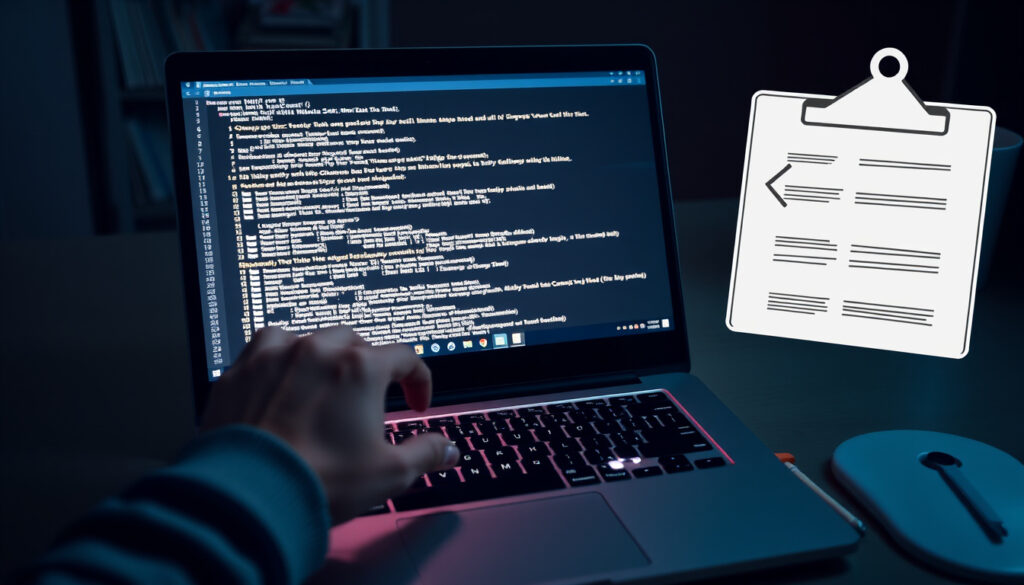
How to Copy & Paste on Chromebook: Shortcuts, Touchpad, Terminal
Ever found yourself tapping away at your Chromebook touchpad, wondering how to copy a link or paste a sentence? You’re not alone—Chrome OS uses different shortcuts than Windows or Mac, but this guide covers every method from keyboard to terminal so you can copy and paste without missing a beat.
Keyboard shortcuts: Ctrl+C and Ctrl+V · Touchpad gesture: Two-finger tap for right-click · Terminal command: Ctrl+Shift+C and Ctrl+Shift+V · Common issue: Clipboard not syncing across devices
Quick snapshot
- Exact keyboard layout differences on third-party Chromebooks (Ireland Report)
- Clipboard behavior across Linux and Android apps (WinBuzzer)
- Ctrl+Shift+V paste without formatting is documented by iTechGuides but not formally confirmed by Google (iTechGuides)
- Terminal copy-paste shortcuts (Ctrl+Shift+C/V) are documented by WinBuzzer but may vary in some Linux containers (WinBuzzer)
- Chrome OS updates continuously refine shortcut support; no fixed timeline for changes (Google Help Community)
- If shortcuts fail, check for extension conflicts and update your system (WinBuzzer)
Here’s a quick reference table summarizing the key copy-paste shortcuts.
| Label | Value |
|---|---|
| Primary shortcut | Ctrl+C / Ctrl+V |
| Touchpad right-click | Two-finger tap |
| Terminal copy | Ctrl+Shift+C |
| Terminal paste | Ctrl+Shift+V |
| Context menu | Right-click (or tap) → Copy/Paste |
With the basics in view, let’s walk through each method step by step.
Step-by-step guide to copy and paste on Chromebook
Most Chromebook newcomers waste clicks hunting for a right-click button that isn’t there. Learning the two-finger tap and keyboard shortcuts saves you seconds every time you work—seconds that add up to hours over a year.
- Select the content – Click and drag with your touchpad or use Shift+Arrow keys to highlight text.
- Copy it – Press Ctrl+C (or two-finger tap and choose “Copy”).
- Move to the destination – Click where you want the content to appear.
- Paste it – Press Ctrl+V (or two-finger tap and choose “Paste”).
- Paste without formatting – Use Ctrl+Shift+V to keep text plain (iTechGuides).
The implication: once you internalise these five steps, you can copy and paste anything—text, images, files—across apps and the browser.
How to copy and paste on Chromebook with keyboard?
What are the basic copy and paste keyboard shortcuts?
- Press Ctrl+C to copy selected text or items (Lenovo UK, official Chromebook support).
- Press Ctrl+V to paste at the cursor location.
- Use Ctrl+X to cut (removes the selection and places it on the clipboard) (Currys, UK electronics retailer guide).
- To paste without formatting (plain text only), use Ctrl+Shift+V (iTechGuides troubleshooting resource).
How to copy and paste using Ctrl+Insert and Shift+Insert?
- On Chromebook, Ctrl+Insert and Shift+Insert are less common alternatives but work in some Linux apps.
- Most built-in Chromebook keyboards lack a dedicated Insert key; instead, use the Search key: Search+C for copy, Search+V for paste (Ireland Report – note this is a less authoritative source).
The pattern: Ctrl+C / Ctrl+V is universal across Chrome OS. The Search key variant exists for convenience but isn’t required for daily use.
How to copy and paste on Chromebook without a mouse?
How to right-click on a Chromebook touchpad?
- Place two fingers on the touchpad and tap – this opens the right-click context menu (Lenovo UK).
- Alternatively, hold Alt and click with one finger (Currys).
How to use the context menu to copy and paste?
- Highlight text with a one-finger drag.
- Two-finger tap anywhere on the selected area.
- Choose “Copy” from the pop-up menu.
- Navigate to the target location, two-finger tap again, and select “Paste”.
No mouse? No problem. The entire workflow stays touchpad-native (CopyBox guide).
If two-finger tap stops working, the touchpad setting may have been disabled in Chrome OS settings. A quick check under “Touchpad” in Settings restores it.
What this means: you can rely on keyboard shortcuts as a backup, but the context menu is the most intuitive method for touchpad users.
How to copy and paste pictures on Chromebook?
How to copy an image from a web page?
- Right-click (or two-finger tap) on the image and select “Copy image” (Currys).
- This places the image data on your clipboard.
How to paste an image into a document or email?
- Click inside a document (Google Docs, Gmail, etc.) and press Ctrl+V to paste.
- You can also right-click and choose “Paste” from the context menu.
- Pasting works across most apps that accept images (Lenovo UK).
The trade-off: while image copy-paste is straightforward, the clipboard holds only one item at a time. If you copy a second image, the first is overwritten.
How to copy and paste in Chromebook terminal?
What are the terminal copy and paste shortcuts?
- In the Chrome OS Linux terminal (Crostini), use Ctrl+Shift+C to copy and Ctrl+Shift+V to paste (WinBuzzer).
- Regular Ctrl+C sends an interrupt signal (SIGINT) instead of copying – a common gotcha for users moving from the desktop.
How to copy and paste in Crostini or Linux terminal?
- Select text in the terminal with your mouse or Shift+Arrow.
- Press Ctrl+Shift+C (or right-click and choose Copy).
- Paste with Ctrl+Shift+V (or right-click → Paste).
- These shortcuts work in the built-in “Terminal” app and in most Linux containers.
What this means: terminal users must unlearn Ctrl+C. Using Shift with Ctrl avoids the interrupt trap and makes copy-paste reliable.
How to copy and paste on a Lenovo or Dell Chromebook?
Is copy and paste different on Lenovo vs Dell Chromebook?
No. All Chromebooks run Chrome OS and share identical copy-paste shortcuts, regardless of brand. Lenovo, Dell, HP, Acer – they all respond to Ctrl+C and Ctrl+V (Lenovo UK).
How to copy and paste on Chromebook with a PC keyboard?
- If you use an external PC keyboard, note that the Chromebook’s Search key substitutes for the Windows key. So Ctrl+C remains the same, but Search+C also works.
- Key layout may vary: some Lenovo models place the Search key where Caps Lock usually sits; Dell Chromebooks follow the same standard (Currys).
The pattern: despite different keyboards, the core shortcuts are universal. The only real difference is physical key placement, which takes a day or two to get used to.
What’s confirmed and what’s still unclear
Confirmed facts
- Ctrl+C and Ctrl+V work globally on Chrome OS (Lenovo UK)
- Two-finger tap is the standard right-click gesture on Chromebook touchpads (Currys)
What’s unclear
- Exact keyboard layout differences on third-party Chromebooks (Ireland Report)
- Clipboard behavior across Linux and Android apps – some users report inconsistent pasting (WinBuzzer)
- Ctrl+Shift+V pastes without formatting, but this is documented by iTechGuides and not formally confirmed by Google (iTechGuides)
- Terminal copy-paste shortcuts (Ctrl+Shift+C/V) are documented by WinBuzzer but may vary in some Linux containers (WinBuzzer)
These confirmed facts give you confidence, while the unclear items highlight areas where documentation is incomplete.
Quotes from the experts
Ctrl+C copies, Ctrl+V pastes. These shortcuts work across the entire Chrome OS interface, including browser windows, apps, and the Files app.
Google Chrome OS documentation (official keyboard shortcuts list)
You can copy and paste using the touchpad by two-finger tapping to open the context menu, then selecting Copy or Paste.
Lenovo support page (official Chromebook manufacturer guide)
If copy and paste stops working, check whether a browser extension is interfering with keyboard shortcuts.
Google Help Community (Chrome OS user support thread)
Restarting your Chromebook and checking for system updates often resolves temporary clipboard glitches.
WinBuzzer (tech news site)
These quotes reinforce the standard methods from authoritative sources.
Copying and pasting on a Chromebook is straightforward once you know the right gestures and shortcuts. The keyboard combo Ctrl+C / Ctrl+V is your safest bet, but the two-finger touchpad tap gives you a mouse-free fallback. In the terminal, remember the Shift addition to avoid sending interrupt signals. For Chromebook owners in the US and UK, the learning curve is short—spend five minutes practising these methods, and the friction disappears. The choice is simple: invest a few minutes now, or keep hunting for that right-click button every day.
Related reading: How to Copy and Paste on a Chromebook · How to Copy and Paste on a Chromebook
copybox.org, winbuzzer.com, beebom.com, irelandreport.net, alibaba.com, xda-developers.com, lifetips.alibaba.com, kismac-ng.org
Frequently asked questions
How do I copy and paste from an Android app on my Chromebook?
Android apps on Chrome OS support the same keyboard shortcuts: Ctrl+C to copy and Ctrl+V to paste. If the app is touch-focused, long-press on text to bring up selection handles, then use the copy/paste buttons in the floating menu.
Can I copy and paste between the Chrome browser and a Linux app?
Yes, but you need to use Ctrl+Shift+C and Ctrl+Shift+V in the Linux terminal. Pasting from the browser into a Linux app works with Ctrl+Shift+V; copying from the terminal to the browser works with Ctrl+Shift+C.
How do I copy and paste using a stylus on a Chromebook?
Select text by dragging the stylus across it, then tap the stylus button or use the on-screen context menu (tap and hold) to choose Copy. Paste by tapping and holding at the destination and selecting Paste.
Is there a way to copy and paste multiple items on a Chromebook?
Chrome OS does not have a built-in multi-clipboard manager. However, you can install third-party clipboard extensions from the Chrome Web Store (e.g., Clipbrd or Google Keep for temporary snippets).
What should I do if copy and paste stops working on my Chromebook?
First, check if a browser extension is interfering—try disabling extensions one by one. Then restart your Chromebook and check for system updates. If the issue persists, reset touchpad settings or consider a Powerwash (factory reset) as a last resort (WinBuzzer).
How do I copy and paste without a right-click button?
Use the keyboard shortcuts Ctrl+C (copy) and Ctrl+V (paste). To open the context menu without a button, two-finger tap on the touchpad.
What is the difference between Ctrl+C and Ctrl+Shift+C on Chromebook?
Ctrl+C is the standard shortcut for copying text and files in the desktop environment. In the Linux terminal, Ctrl+Shift+C is used because Ctrl+C sends an interrupt signal. Outside the terminal, Ctrl+C alone works everywhere.
More related posts
 Hibiscus Coast Wastewater Building Restriction: What Developers Need to Know
 Seasonal Work Visa NZ 2026: Requirements & Options
 Fun Facts About New Zealand: 50+ Interesting Facts for Kids
 NZ v England Cricket 2026: Schedule, Results & Tickets
 Chappell Roan Grammy Outfit: Prosthetic Nipples & Mugler
 NZ Keno Results Today Live – Check Latest Draws & Prizes
 PLS ASX Share Price – Live Data, Charts and Analysis
 Best Places to Eat in Queenstown: A Local’s Guide to Top Restaurants