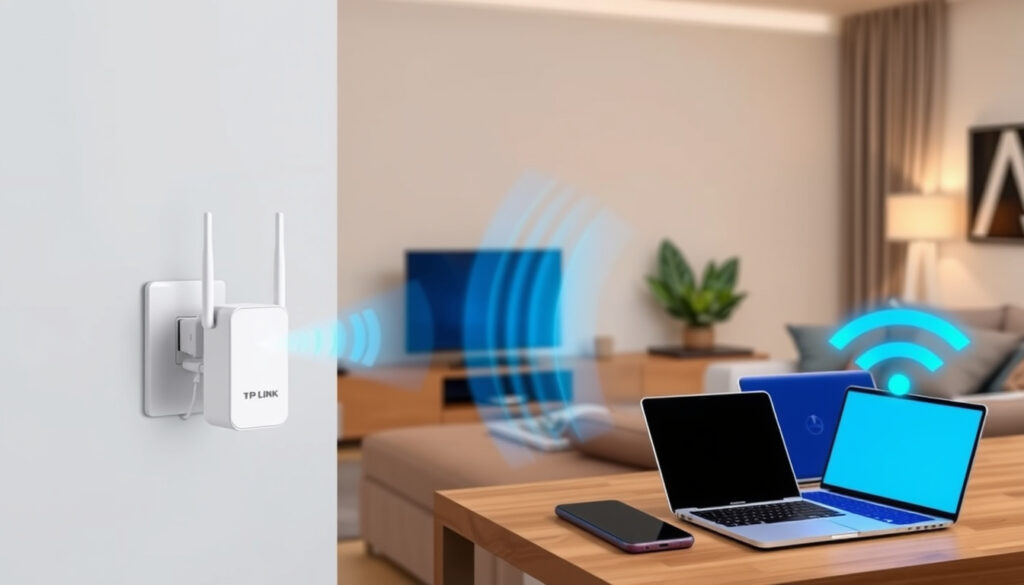
TP-Link WiFi Extender – Best Models Setup and Troubleshooting
TP-Link WiFi Extenders: Best Models, Setup & Troubleshooting Guide
TP-Link offers one of the widest selections of WiFi extenders on the market, ranging from budget-friendly single-band models to high-performance WiFi 6 units designed for gaming and 4K streaming. Understanding which model suits your home environment, and how to set it up correctly, can mean the difference between eliminating dead zones and wasting money on hardware that underperforms.
The TP-Link RE series has evolved significantly since its introduction, with newer models incorporating OneMesh technology for seamless roaming and the latest WiFi 6 standards for improved efficiency. Whether you are dealing with thick walls, multiple floors, or simply a router that cannot reach the far corners of your property, these devices provide a practical solution without requiring a complete network overhaul.
This guide examines the most capable TP-Link extenders available in 2024, walks through setup procedures step by step, and addresses the most common problems users encounter. Particular attention is given to compatibility considerations, since the extender you choose must work effectively with your existing router regardless of brand.
How Do I Set Up My TP-Link WiFi Extender?
Setting up a TP-Link WiFi extender follows a consistent process across most models in the RE series. The procedure typically takes under ten minutes, though first-time users may want to allocate additional time for placement experimentation. Three distinct methods exist for completing the initial configuration, with the WPS method being the fastest option for routers that support it.
RE305, RE450, RE650, RE705X
AC1200 to AX3000 speeds, OneMesh support
$20 – $150 depending on model
Up to 2,500–3,000 sq ft per unit
- Position the extender halfway between your router and the dead zone for optimal signal strength
- Wait 1–2 minutes after plugging in for the Power LED to turn solid before attempting configuration
- The WPS method requires pressing the router button for 3 seconds, then the extender button within 2 minutes
- Use the Tether app when your router lacks WPS functionality
- OneMesh-compatible extenders automatically copy your router’s SSID and password when paired
- After initial setup, relocate the extender if both 2.4GHz and 5GHz LEDs remain off
- Firmware updates via the Tether app improve stability and speed retention over time
| Model | WiFi Standard | Speed Rating | Bands | Ethernet Ports | Coverage |
|---|---|---|---|---|---|
| RE705X | WiFi 6 (AX3000) | Up to 3 Gbps | Dual-band (2.4/5 GHz) | 1 Gigabit | Up to 3,000 sq ft |
| RE650 | AC2600 | Up to 2.6 Gbps | Dual-band | 1 Gigabit | Up to 2,500 sq ft |
| RE450 | AC1750 | Up to 1.75 Gbps | Dual-band | None | Up to 2,500 sq ft |
| RE305 | AC750 | Up to 750 Mbps | Dual-band | None | Up to 1,200 sq ft |
| RE205 | AC750 | Up to 750 Mbps | Dual-band | None | Up to 1,200 sq ft |
Using the WPS Method
The WPS (WiFi Protected Setup) method remains the quickest path to extension. Locate the WPS button on your existing router and hold it for approximately three seconds until the indicator light begins blinking. Immediately press the WPS button on your TP-Link extender for one second, then release. Within two minutes, the Signal, 2.4GHz, and 5GHz LEDs should illuminate to confirm a successful connection. This method works with any router that supports WPS, regardless of manufacturer.
Using the Tether App
Download the TP-Link Tether application from the QR code included in the packaging or from your device’s app store. After plugging in the extender and waiting for the Power LED to stabilize, connect your smartphone to the default network labeled “TP-Link_Extender” – this network requires no password initially. The app will then guide you through selecting your existing networks separately for the 2.4GHz and 5GHz bands, prompting you to enter your router password for each.
Using a Web Browser
For manual configuration, connect your computer or mobile device to the extender’s default SSID and open a web browser. Navigate to the address printed on the extender’s label, typically tplinkrepeater.net or 192.168.0.254. The web interface presents the same configuration options as the Tether app, making it suitable for users who prefer a larger screen during setup or who encounter app compatibility issues.
If neither the 2.4GHz nor 5GHz LED activates after setup, try relocating the extender closer to the router. The goal is to achieve at least one solid band indicator while maintaining sufficient distance from the router to extend coverage into your target dead zone.
What Is the Best TP-Link WiFi Extender?
The answer depends heavily on your specific requirements. A household with basic web browsing needs will find the RE305 sufficient, while serious gamers and 4K streaming households benefit most from the RE705X. The RE450 and RE650 occupy the middle ground, offering strong performance at moderate price points.
RE705X for High-Demand Users
The RE705X represents TP-Link’s flagship WiFi 6 extender, rated at AX3000 with theoretical speeds reaching 3 Gbps. Its dual-band operation supports the latest 802.11ax standard, delivering lower latency and better handling of multiple connected devices compared to older AC models. For gaming, this translates to responsive connections without the buffering that plagues lesser hardware. The unit features dual adjustable antennas and a side-mounted Gigabit Ethernet port for wired device connections.
RE450 for Standard Homes
The RE450 remains popular among users seeking reliable mid-range performance without the premium cost of WiFi 6 hardware. Rated at AC1750, it handles everyday streaming, video calls, and web browsing without difficulty. User reviews frequently cite the straightforward WPS setup completing in under two minutes, with many reporting complete elimination of dead zones following installation. The three-antenna design provides flexible positioning options for multi-story homes.
RE305 for Budget-Conscious Buyers
At the entry level, the RE305 delivers essential extension capabilities at a price point that makes experimentation financially risk-free. While its AC750 rating limits performance for bandwidth-intensive activities, it performs admirably for basic connectivity in smaller spaces. The compact design plugs directly into wall outlets without protruding, making it suitable for environments where physical space is constrained.
Models including the RE705X, RE650, RE450, and RE305 support TP-Link’s OneMesh technology when paired with compatible routers. OneMesh creates a unified network using a single SSID, allowing devices to roam automatically between the router and extender without manual reconnection. This feature is particularly valuable in larger homes where users frequently move between areas.
Why Is My TP-Link WiFi Extender Not Working?
Connectivity issues with TP-Link extenders typically stem from one of four causes: incorrect placement, firmware problems, router configuration conflicts, or hardware malfunction. Systematic troubleshooting can resolve most issues without requiring professional support.
Common Connection Failures
When the extender fails to connect during setup, first verify that your router is actively broadcasting WiFi – some routers have disabled wireless transmission by default. If the WPS method is failing, ensure you press the extender button within two minutes of activating the router’s WPS function. Blinking LEDs indicate the device is actively searching for a signal to extend. Should one frequency band connect while the other fails, set up each band individually through the Tether app rather than attempting simultaneous configuration.
Reset Procedures
Factory resetting an extender requires locating the reset button, typically found on the back or side of the unit. Press and hold this button for five to ten seconds until the LEDs flash, then release. Unplug the device, wait thirty seconds, and reconnect. If the reset fails to resolve the issue, the web interface or Tether app provides an alternative factory reset option under the system settings. After resetting, the extender returns to its default configuration and requires complete re setup.
WiFi extenders inherently reduce throughput compared to a direct router connection because they must receive and retransmit data on the same frequency. Users frequently report approximately half their original speed when connected through an extender. This reduction is unavoidable in single-hop extension but can be minimized through strategic placement, using the 5GHz band for backhaul when available, and enabling OneMesh mode to optimize traffic routing.
Slow Performance After Setup
Speed loss is the most frequently reported complaint among extender users. This behavior is technically inherent to the extension process rather than a defect. Moving the extender closer to the router improves signal quality and therefore throughput, though this must be balanced against the need for sufficient distance to actually extend coverage. Testing your connection speed before and after setup helps establish baseline expectations. Firmware updates released through the Tether app or web interface often include performance improvements and bug fixes worth applying.
Does a TP-Link WiFi Extender Work with Any Router?
TP-Link WiFi extenders are designed for universal compatibility, functioning with routers from any manufacturer that supports standard WiFi protocols. The WPS method requires WPS-enabled routers, but the Tether app and web browser setup methods work regardless of router brand or model. This flexibility makes TP-Link extenders a viable option for users with existing infrastructure from Internet Service Providers or older networking equipment.
OneMesh Router Compatibility
While extenders work universally, the full OneMesh experience requires pairing with a TP-Link OneMesh-compatible router. OneMesh synchronizes the extended network with your router’s settings, creating seamless roaming that automatically directs connected devices to the strongest signal. Users with non-TP-Link routers can still use TP-Link extenders, but they will manage the extended network separately rather than as an integrated system. According to official TP-Link documentation, extenders copy the router’s SSID and password automatically when OneMesh pairing is successful.
Updating Extender Firmware
Keeping extender firmware current ensures optimal performance and security. Within the Tether app, navigate to Advanced, then System, then Firmware Upgrade to check for available updates. Alternatively, access the web interface and locate the same option under Advanced settings. TP-Link releases model-specific firmware files on their support website, though the app typically handles update detection automatically. Users with OneMesh systems should update both router and extender firmware to maintain compatibility between devices.
The Evolution of TP-Link Range Extenders
Understanding the development trajectory of TP-Link’s extender lineup provides useful context for evaluating current models and anticipating future directions.
- 2015: TP-Link introduces the original RE series, establishing the brand in the budget-friendly WiFi extension market
- 2018: Dual-band AC technology becomes standard across mid-range and high-end models, improving speed and reducing interference
- 2020: OneMesh ecosystem launches, enabling unified network management between TP-Link routers and extenders
- 2022: WiFi 6 extenders enter the product lineup, addressing congestion and latency issues in dense device environments
- 2024: RE705X and subsequent models integrate the latest WiFi 6 standards with enhanced OneMesh capabilities
What Works Well and What Remains Unclear
Established Information
- TP-Link extenders are compatible with all routers supporting standard WiFi protocols
- WPS setup completes in 1–2 minutes when both devices are in range
- Speed reduction is inherent to the extension process and typically reaches 50% of direct connection speeds
- RE705X delivers the highest performance among current models, particularly for gaming applications
- OneMesh functionality requires compatible TP-Link router hardware
- Placement midway between router and dead zone optimizes signal extension
- Firmware updates improve stability and performance over device lifespan
Information Requiring Verification
- Actual real-world coverage varies significantly based on building materials and layout
- Speed retention percentages differ across user environments and testing methodologies
- Long-term reliability comparisons between models lack comprehensive independent data
- Specific firmware update schedules are not publicly announced in advance
- Exact performance benefits of OneMesh over standard extension remain informally documented
Understanding WiFi Standards and Extension Technology
WiFi extenders operate by receiving signals from your router and retransmitting them to areas with poor coverage. This two-step process inherently introduces latency and reduces maximum throughput compared to direct router connections. The practical impact on user experience depends on the specific activities being conducted – web browsing and email suffer minimally, while large file transfers and competitive gaming may notice the difference more acutely.
WiFi 6 (802.11ax) technology addresses several limitations of previous standards, including improved handling of multiple simultaneous connections and better performance in congested environments. The RE705X leverages these advances to deliver a meaningfully better experience for households with numerous connected devices, though the fundamental half-speed limitation of extension still applies. Users prioritizing absolute maximum speed should consider mesh networking systems or wired access points instead, which avoid the retransmission bottleneck entirely.
“The RE705X represents the most capable WiFi 6 extension option currently available from TP-Link, combining the latest standards with practical features like OneMesh integration and a Gigabit Ethernet port for hybrid connectivity setups.”
— Based on official TP-Link product documentation
For users with older AC routers, extending to a WiFi 6 extender does not upgrade the router’s capabilities – the extended network inherits the source router’s maximum speed standard. Upgrading both router and extender together maximizes the benefits of newer technology.
Key Sources and References
This analysis draws on official TP-Link documentation including setup and troubleshooting guides, model-specific user manuals for the RE450 and RE305/RE205, official blog resources, and support documentation from the TP-Link support portal. Video demonstrations from TP-Link’s official YouTube channel provide visual references for setup procedures across multiple model configurations.
“Extenders work with any router that broadcasts WiFi, regardless of manufacturer. The WPS method provides the fastest setup, but the Tether app and web browser options ensure compatibility even when WPS is unavailable on the source router.”
Summary and Recommendations
TP-Link WiFi extenders provide a proven, accessible solution for eliminating dead zones without requiring router replacement. The RE705X stands out for demanding applications including gaming and high-resolution streaming, while the RE450 offers the best balance of performance and value for typical households. Setup is straightforward regardless of router brand, with most users completing configuration in under ten minutes using either WPS or the Tether app. Understanding that some speed reduction is inevitable helps set realistic expectations, while strategic placement and OneMesh pairing can minimize the practical impact. For those evaluating broader networking needs, comparing extenders against other connectivity solutions may prove worthwhile depending on your specific situation.
Frequently Asked Questions
Does a TP-Link WiFi extender reduce internet speed?
Yes, extenders typically deliver approximately half the speed of a direct router connection because they must receive and retransmit data. Strategic placement and using 5GHz bands for backhaul can minimize this reduction.
How do I update my TP-Link extender’s firmware?
Open the Tether app, navigate to Advanced, then System, then Firmware Upgrade to check for and install updates. Alternatively, access the web interface and locate the same option under Advanced settings.
Can I use a TP-Link extender with a non-TP-Link router?
Yes, TP-Link extenders are universally compatible with any router that broadcasts WiFi using standard protocols. OneMesh features require TP-Link router hardware, but basic extension works with any brand.
What does the TP-Link OneMesh feature do?
OneMesh creates a unified wireless network between compatible TP-Link routers and extenders, allowing devices to roam automatically between coverage areas without manual reconnection. Both devices share the same SSID and settings.
How do I factory reset a TP-Link WiFi extender?
Press and hold the reset button on the extender for 5–10 seconds until the LEDs flash. Unplug the device for 30 seconds, then reconnect. If the physical reset fails, use the Tether app or web interface to perform a software-based factory reset.
Which TP-Link extender is best for gaming?
The RE705X offers the best gaming performance due to its WiFi 6 technology, low latency, and strong 5GHz throughput. It minimizes the buffer and lag that can affect gaming through lesser extenders.
Where should I place my TP-Link WiFi extender?
Position the extender roughly halfway between your router and the area you want to cover. Point the antennas toward the router, and relocate if neither the 2.4GHz nor 5GHz LED activates after setup.
How many devices can connect to a TP-Link WiFi extender?
Connection capacity varies by model, with newer WiFi 6 models like the RE705X handling more simultaneous connections more efficiently than older AC models. For typical household use, all current models handle standard device loads without issues.
Is the WPS method secure for setting up my extender?
WPS provides adequate security for typical home use. For users with higher security requirements, the Tether app or web browser setup methods offer manual network configuration with more control over security settings.
What is the maximum coverage area for TP-Link extenders?
Coverage ranges from approximately 1,200 square feet for the RE305 to 3,000 square feet for the RE705X, though actual performance depends on building materials, interference sources, and placement quality.
More related posts
 NZD to Vietnamese Dong: Exchange Rate & Spending Tips
 What Is an HDMI ARC Port? Setup, Uses & eARC Guide
 American Pit Bull Terrier: Temperament, Care & Myths Debunked
 Chemist Warehouse Fraser Cove: Hours, Services & Contact
 Easy Appetizers for Parties: No-Cook Make-Ahead Ideas
 Black Caps Live Score: Official Updates & How to Watch
 Wrexham AFC Games: Fixtures, TV Listings & Tickets (2025-27)
 JB Hi-Fi NZ: Store Locations & Sales Guide